 SynthMaker
Play your first sound
Open SynthMaker in your browser and play. No account, nothing to install.
New words
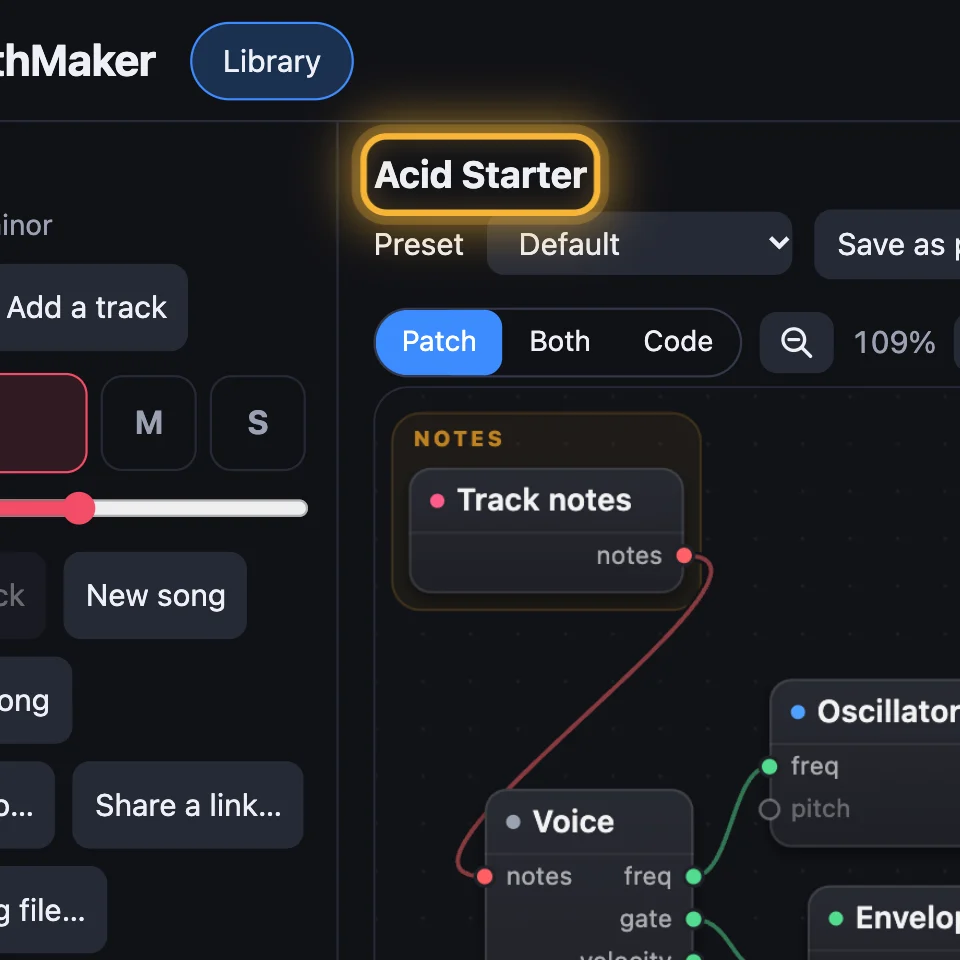
A sound is one instrument, with its own knobs. The library has many to start from.
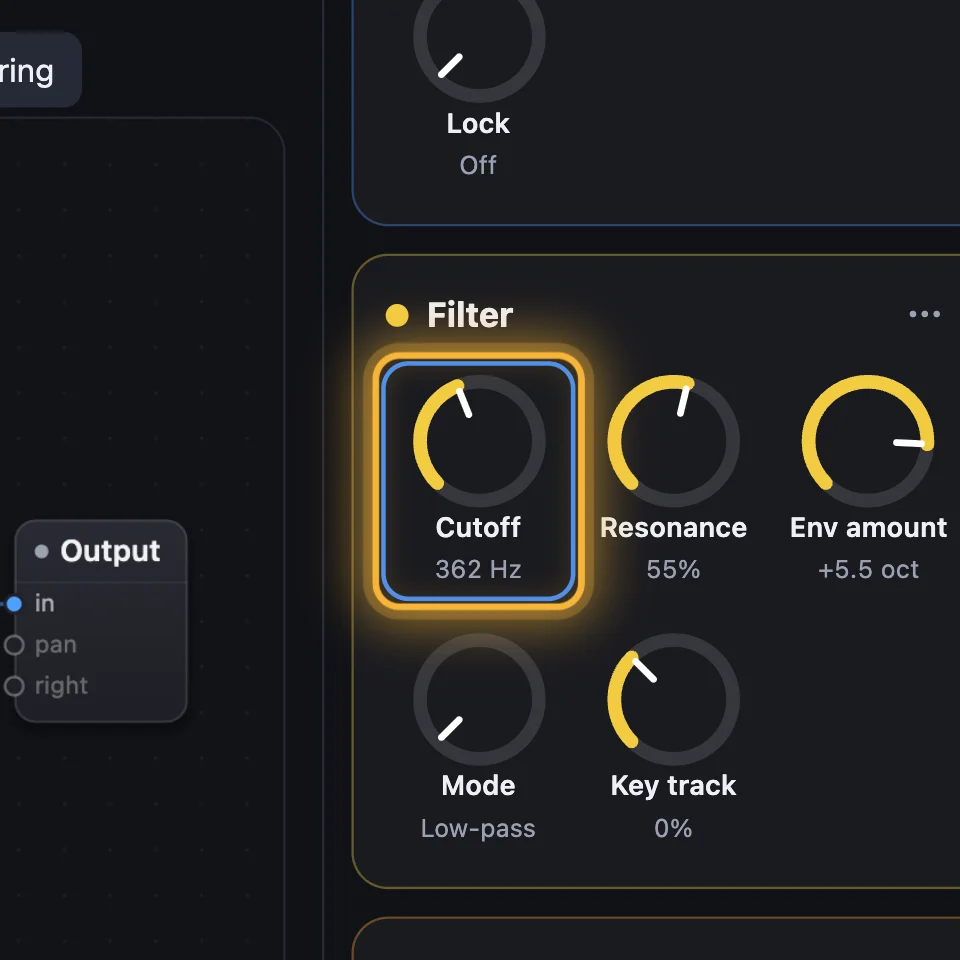
A knob is a round control on a module's card. Drag it to change the sound.
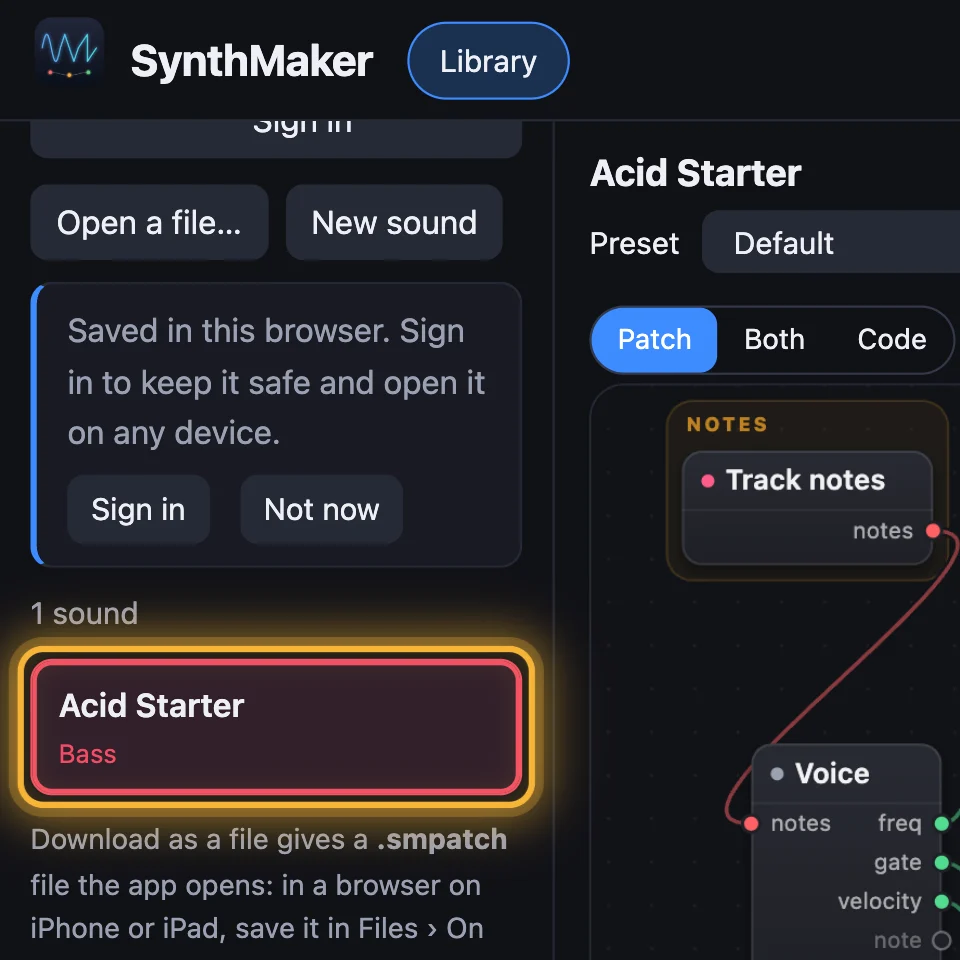
My sounds is where your changed sounds are kept.
1Open SynthMaker
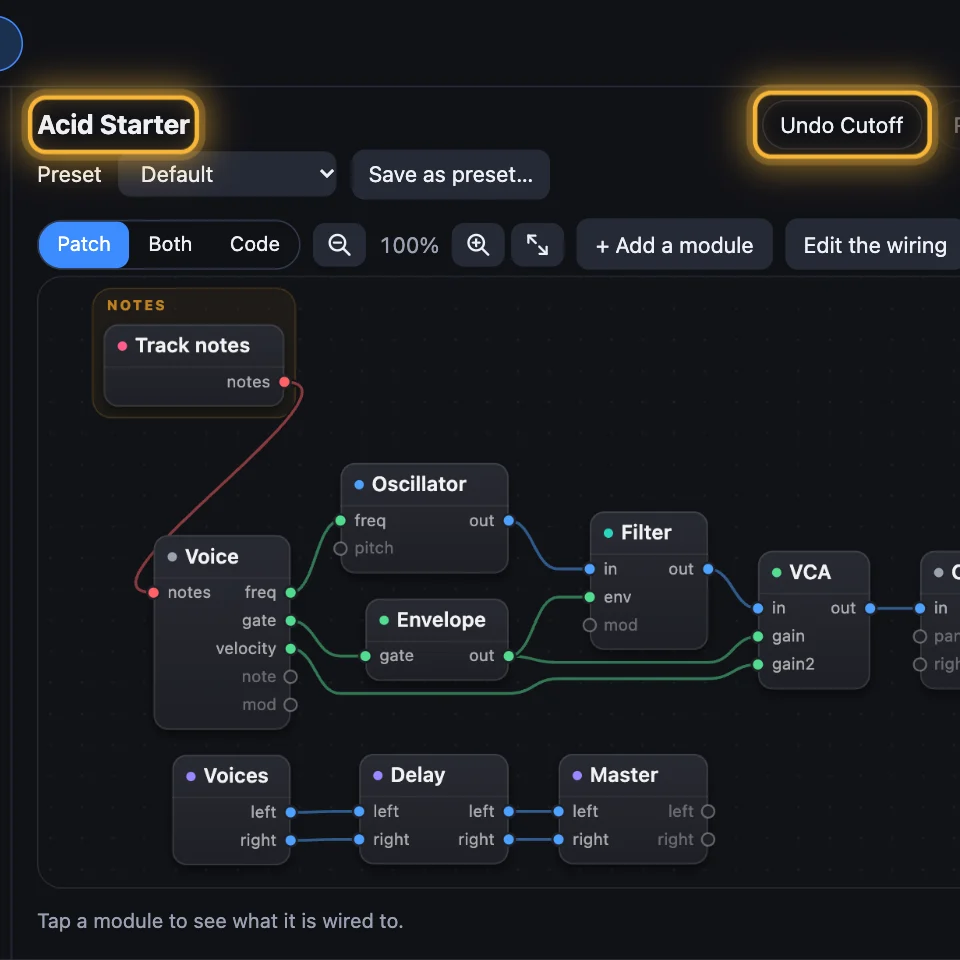
Go to synthmaker.com/app (opens in a new tab). Acid Starter is ready to play. Your browser plays sound only after your first click or key.
2Play the keys
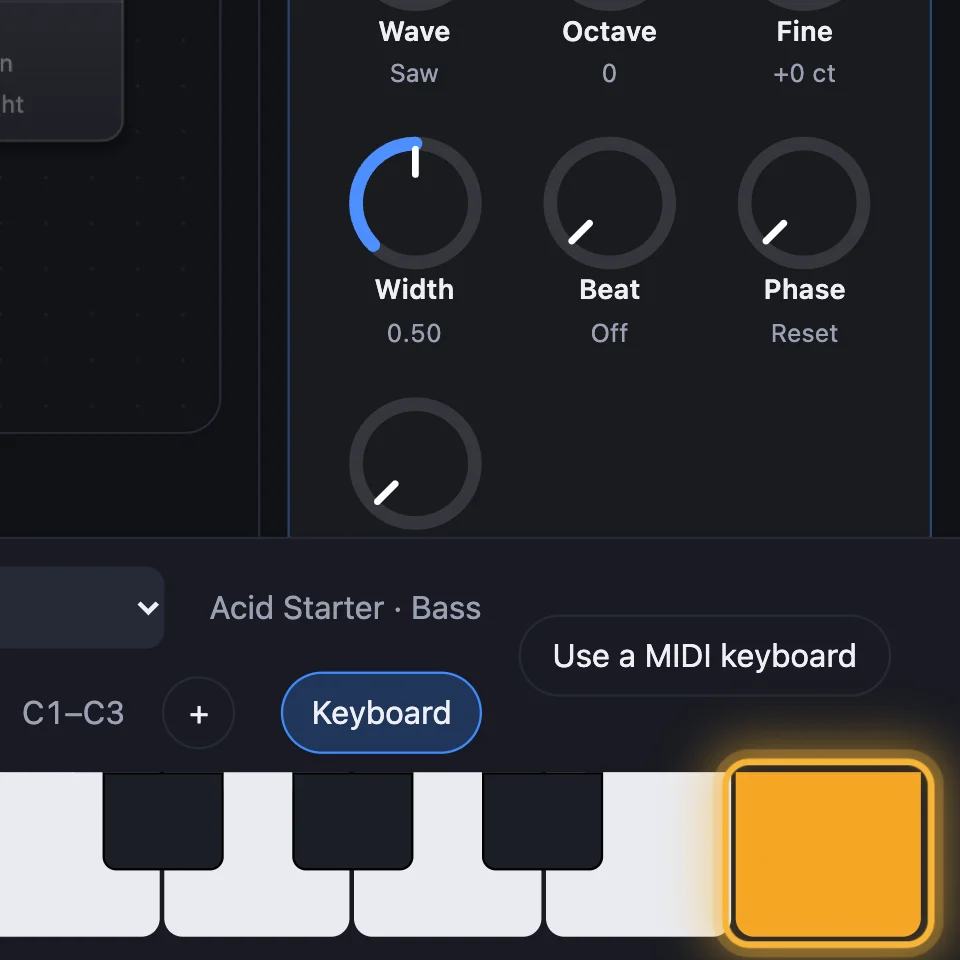
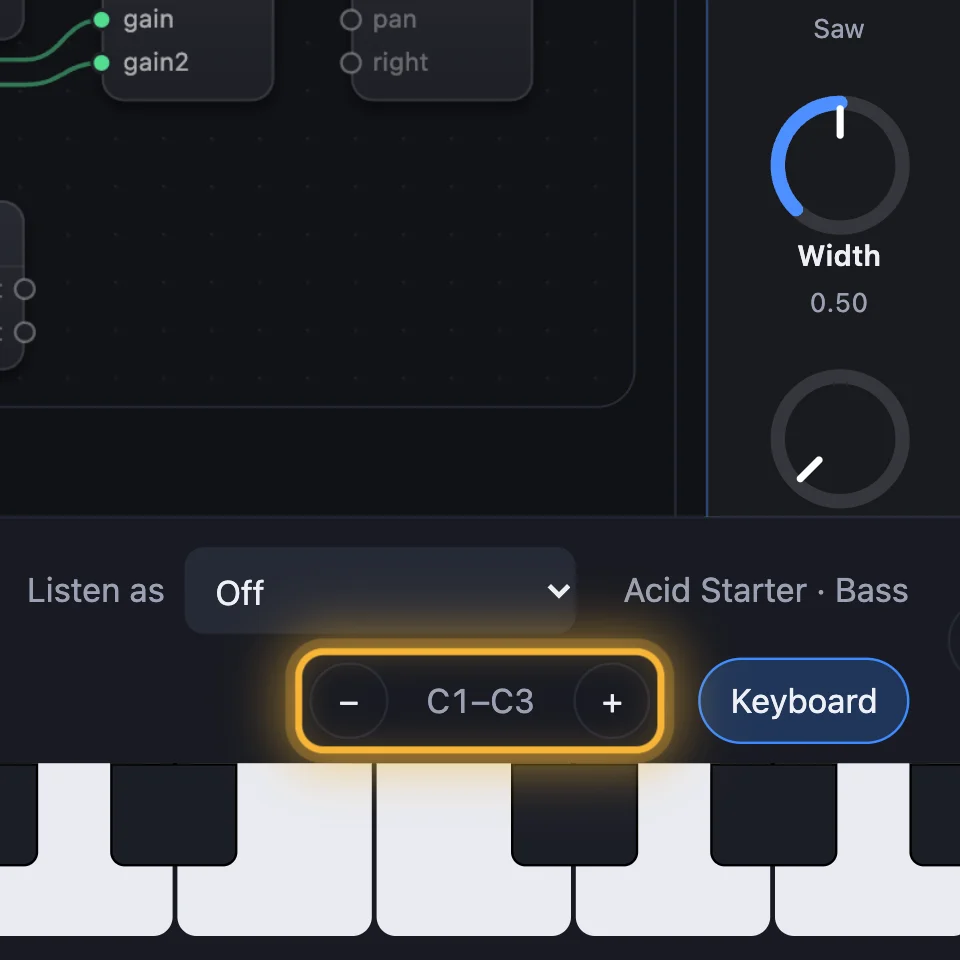
Click the keys along the bottom, or use your computer keyboard: A S D F G H J K play the white keys, W E T Y U the black ones. − and + move the keys an octave.
3A MIDI keyboard
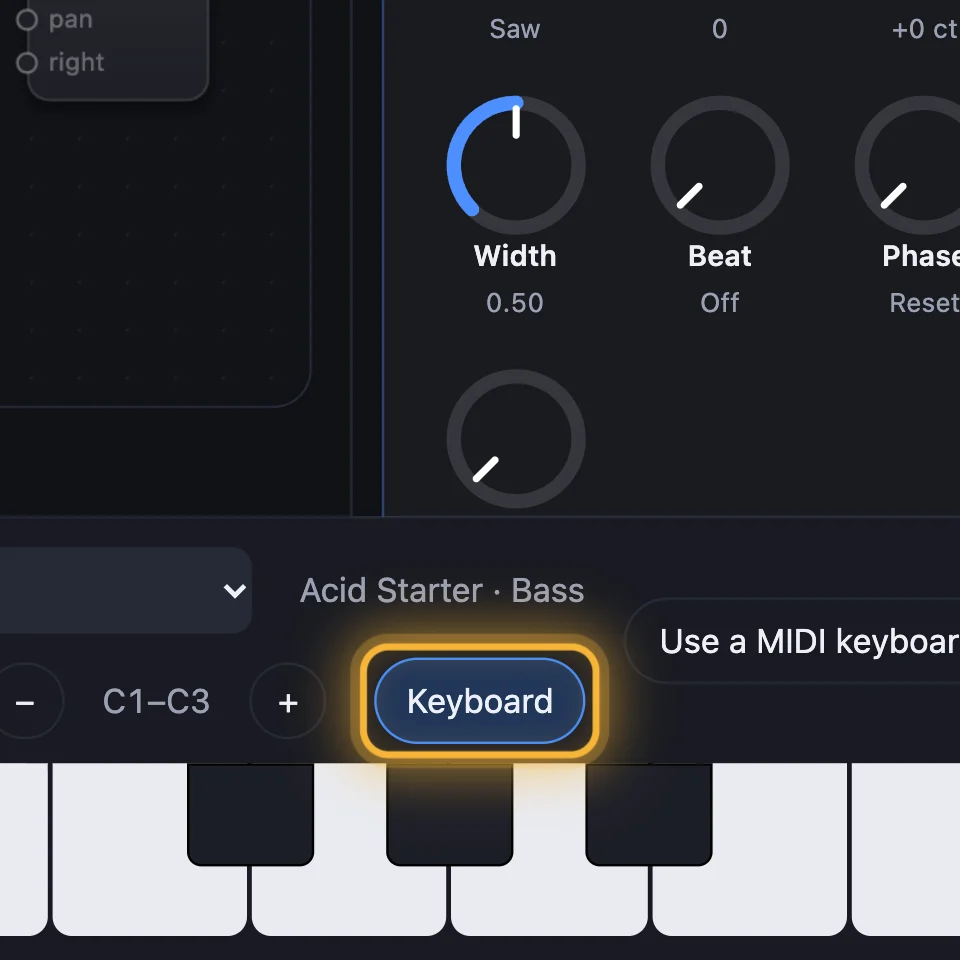
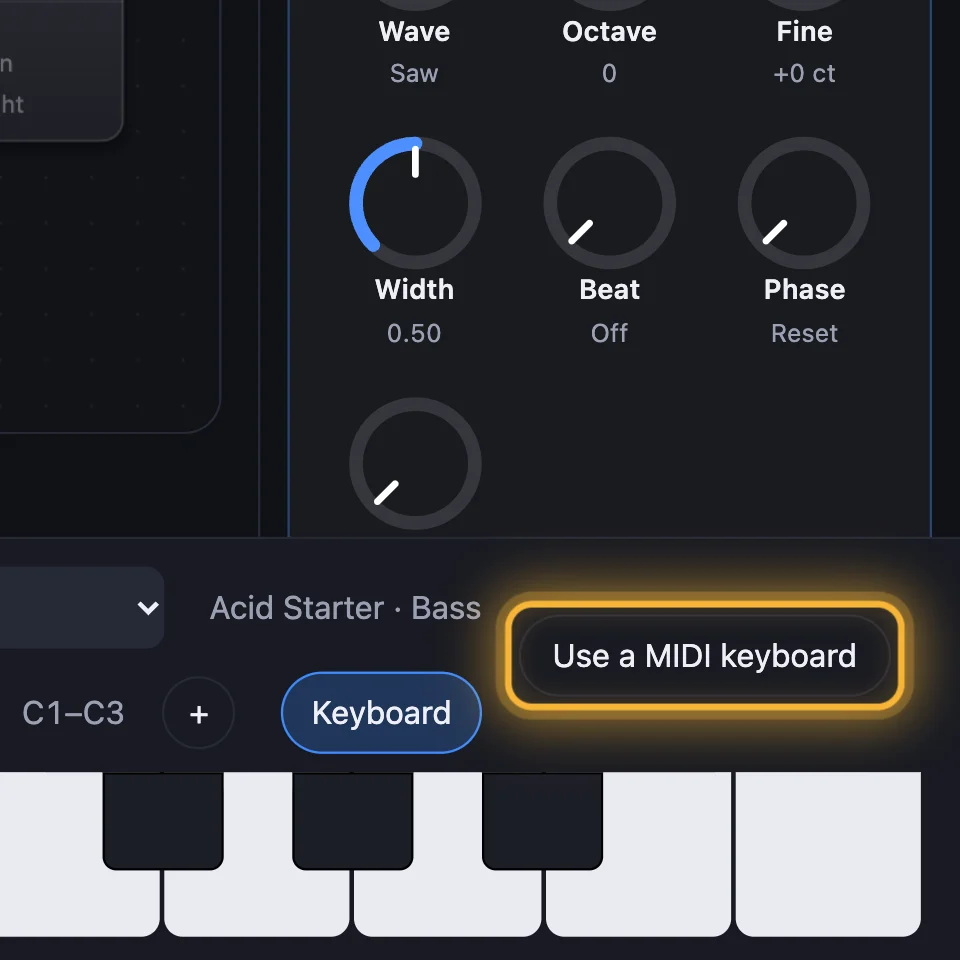
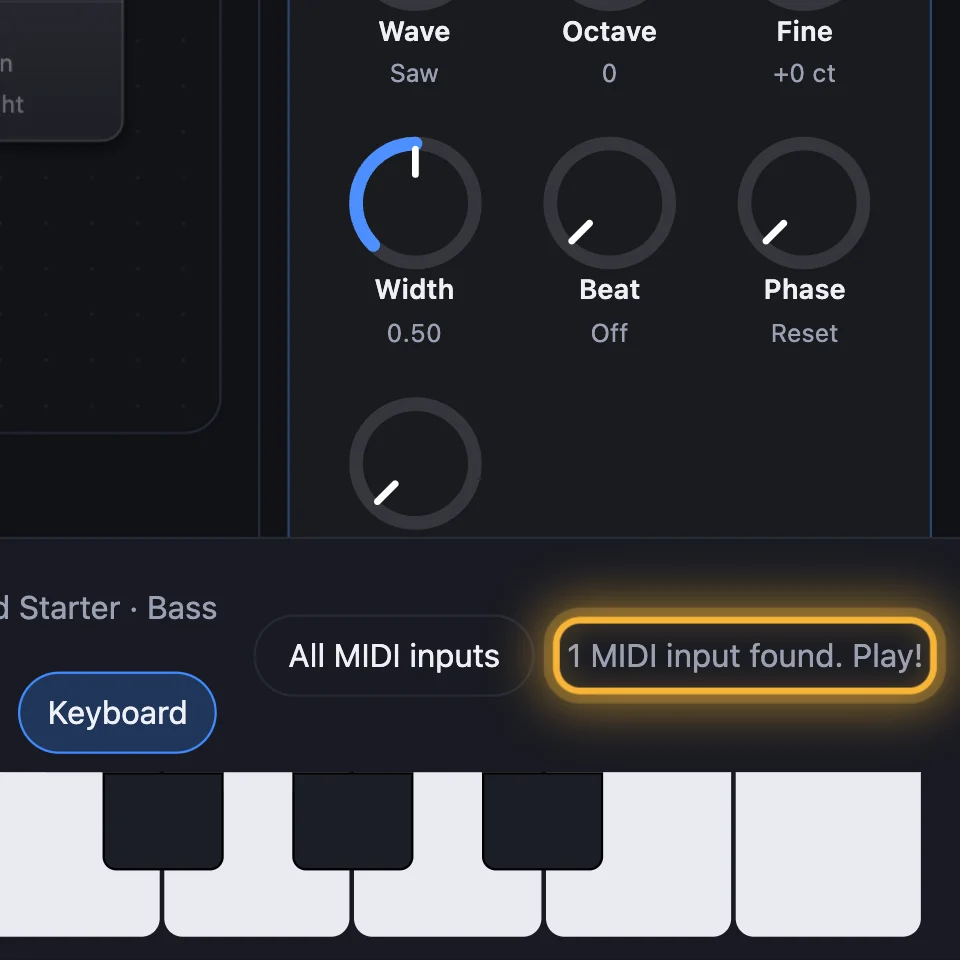
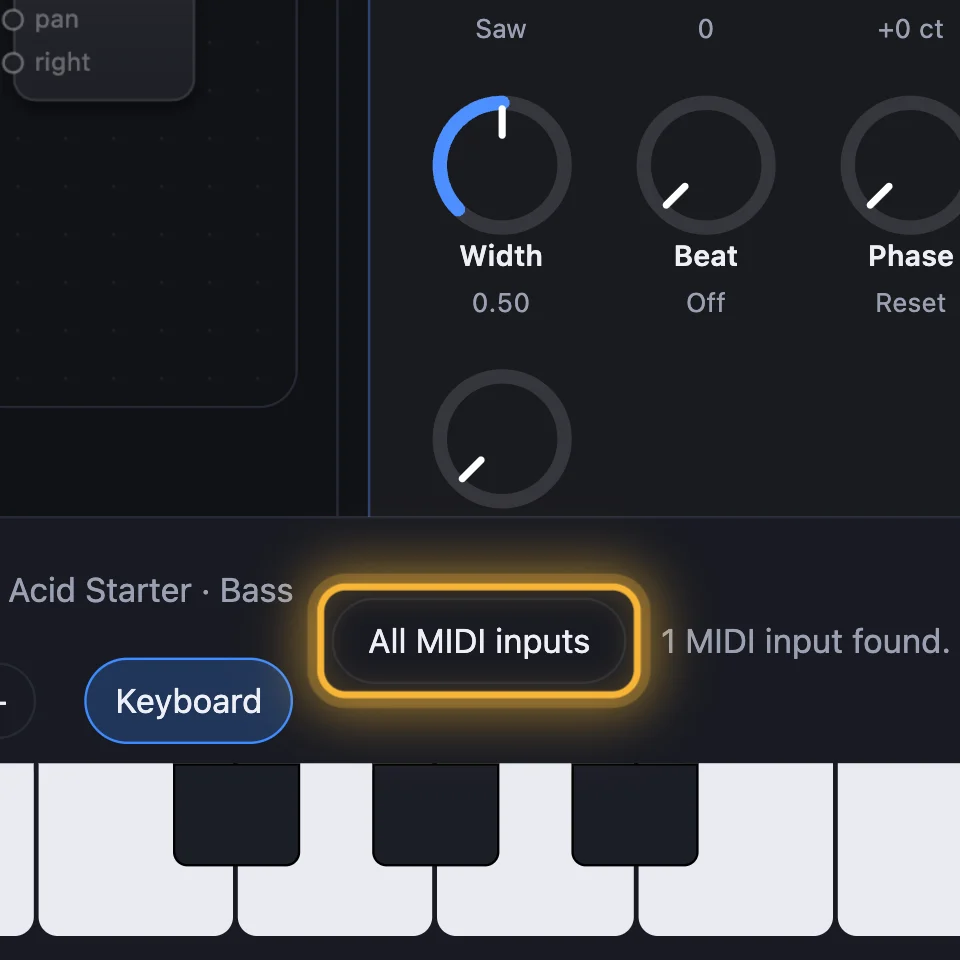
Plug in a MIDI keyboard and click Use a MIDI keyboard. Your browser may ask first: allow it. It works in Chrome, Edge and Firefox. Safari doesn't support MIDI on the web.
4Pick another sound
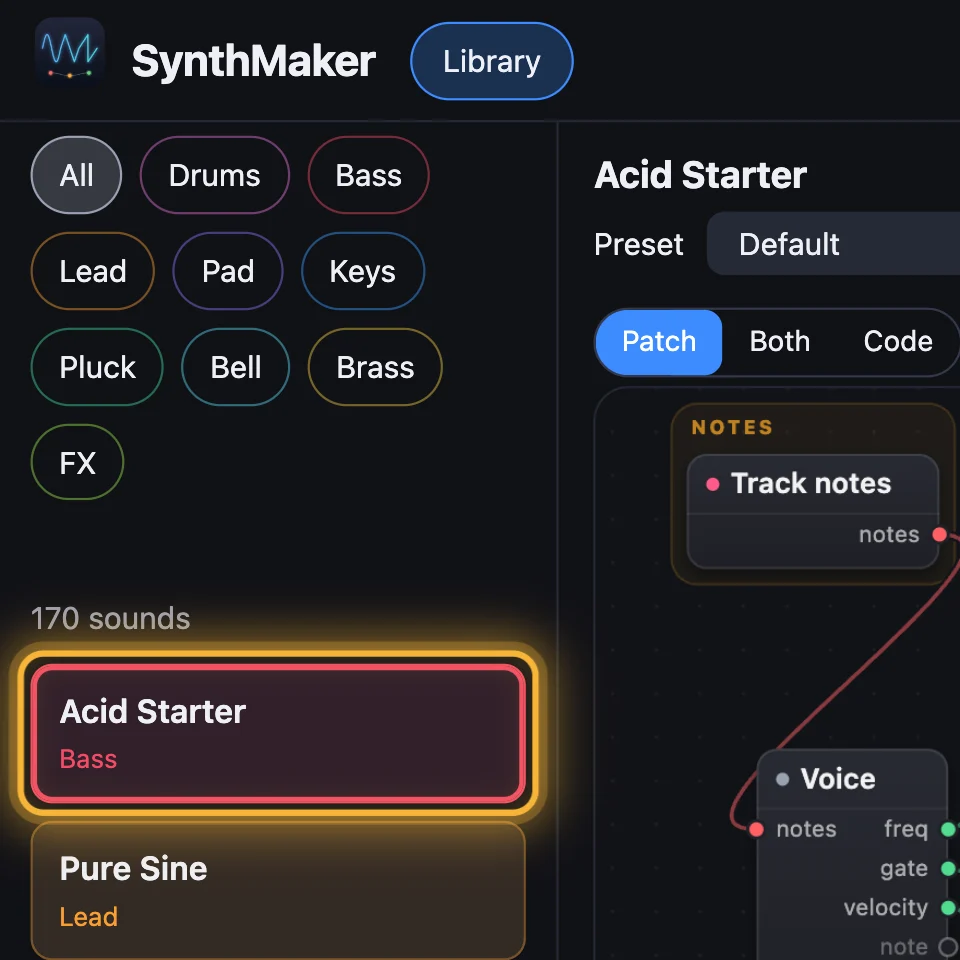
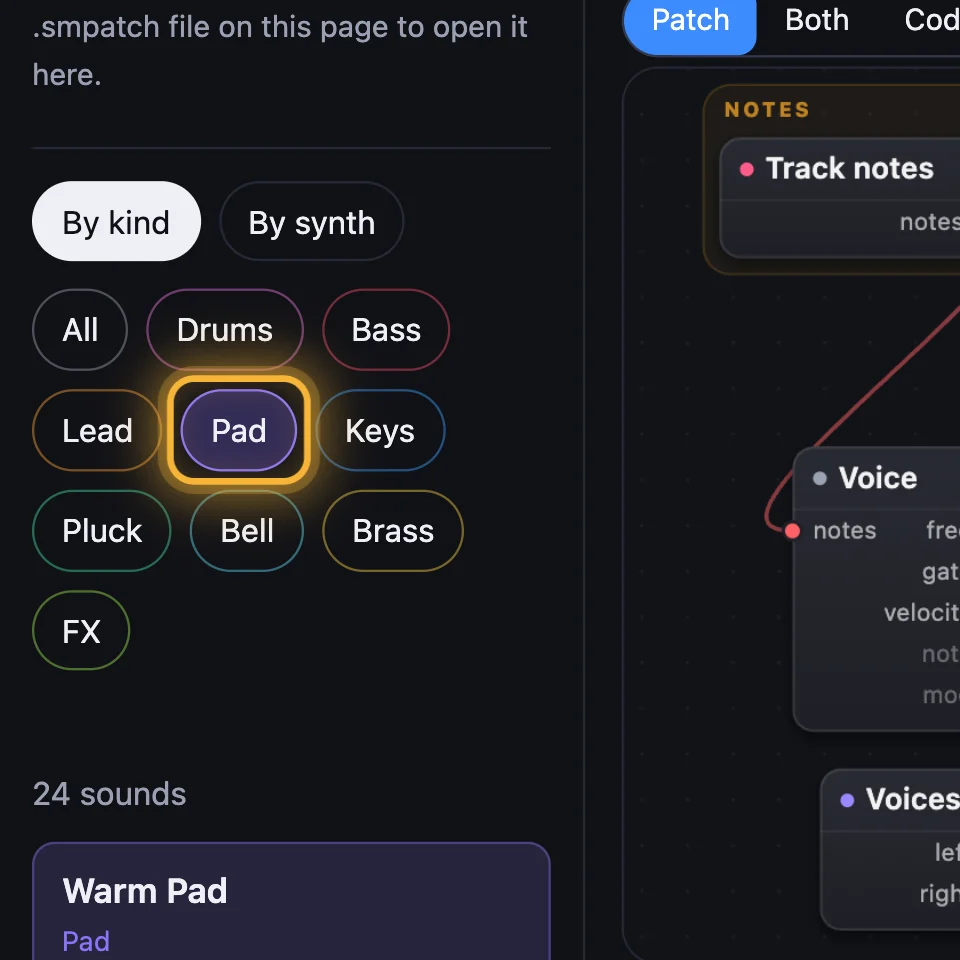
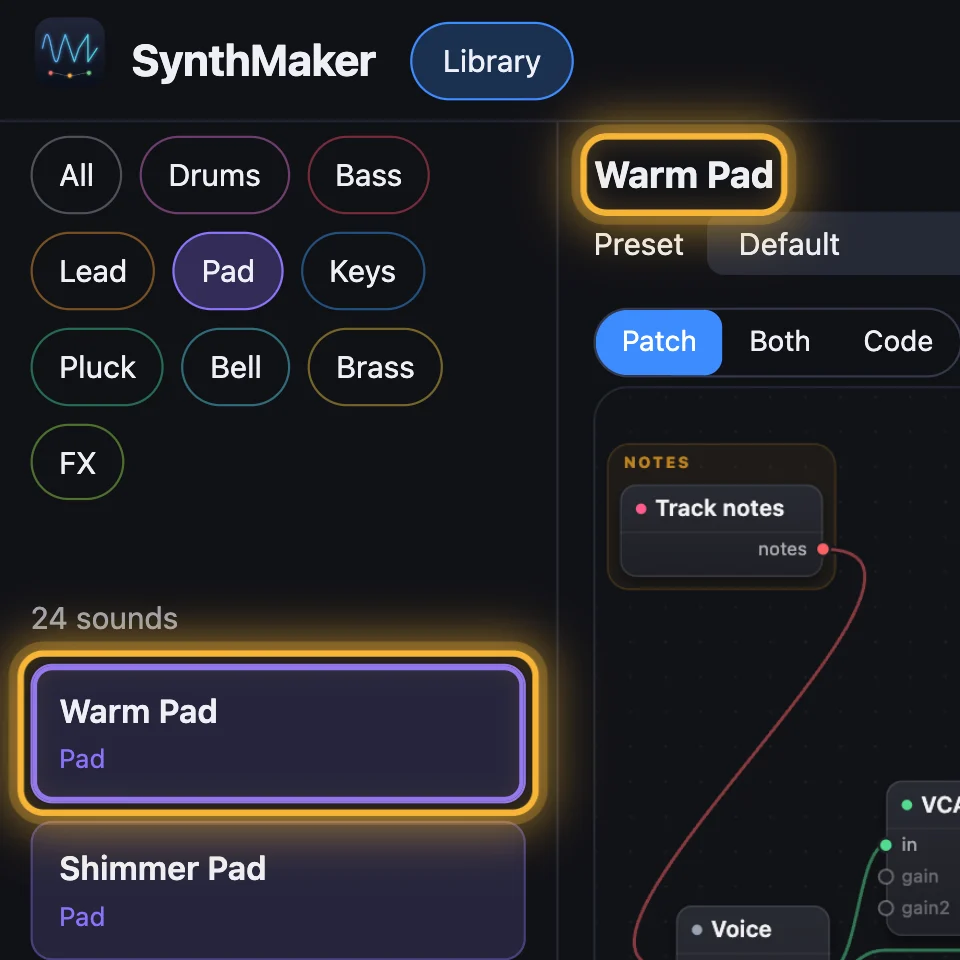
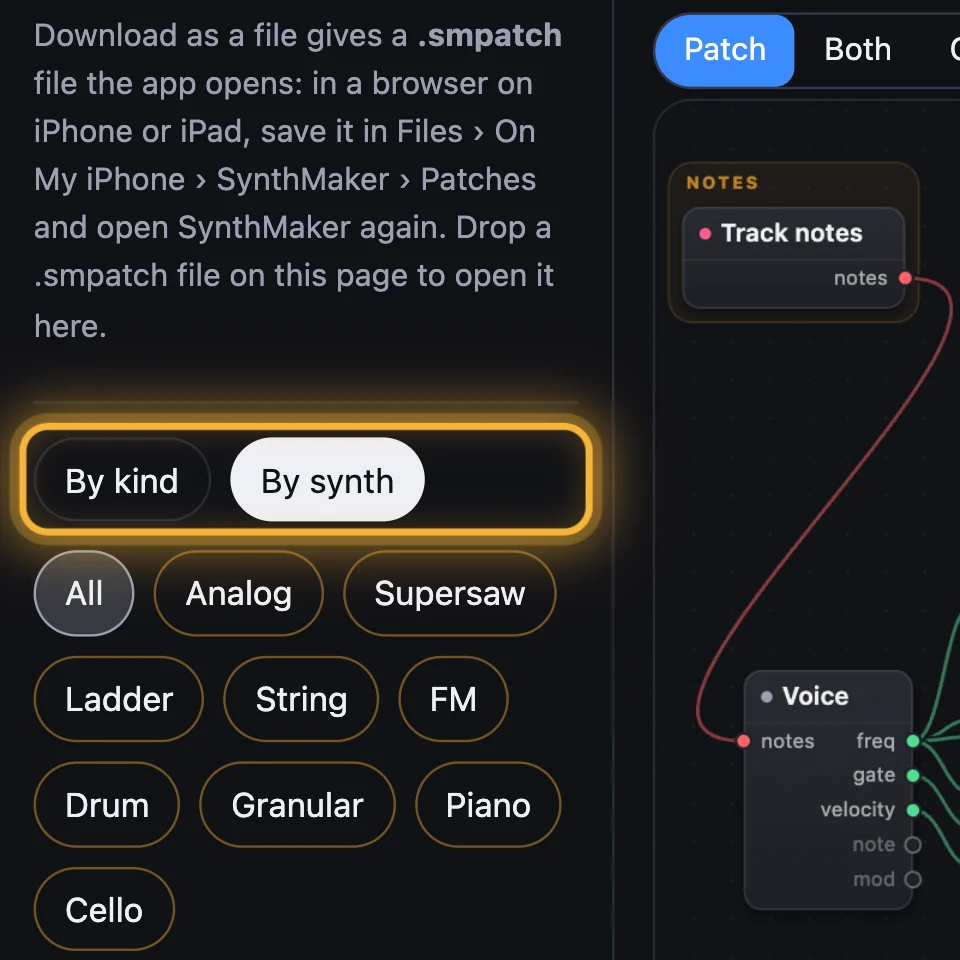
The library lists every sound. Click one and it plays a short note. Narrow the list with the chips, or switch By kind to By synth.
5Turn a knob, then Undo
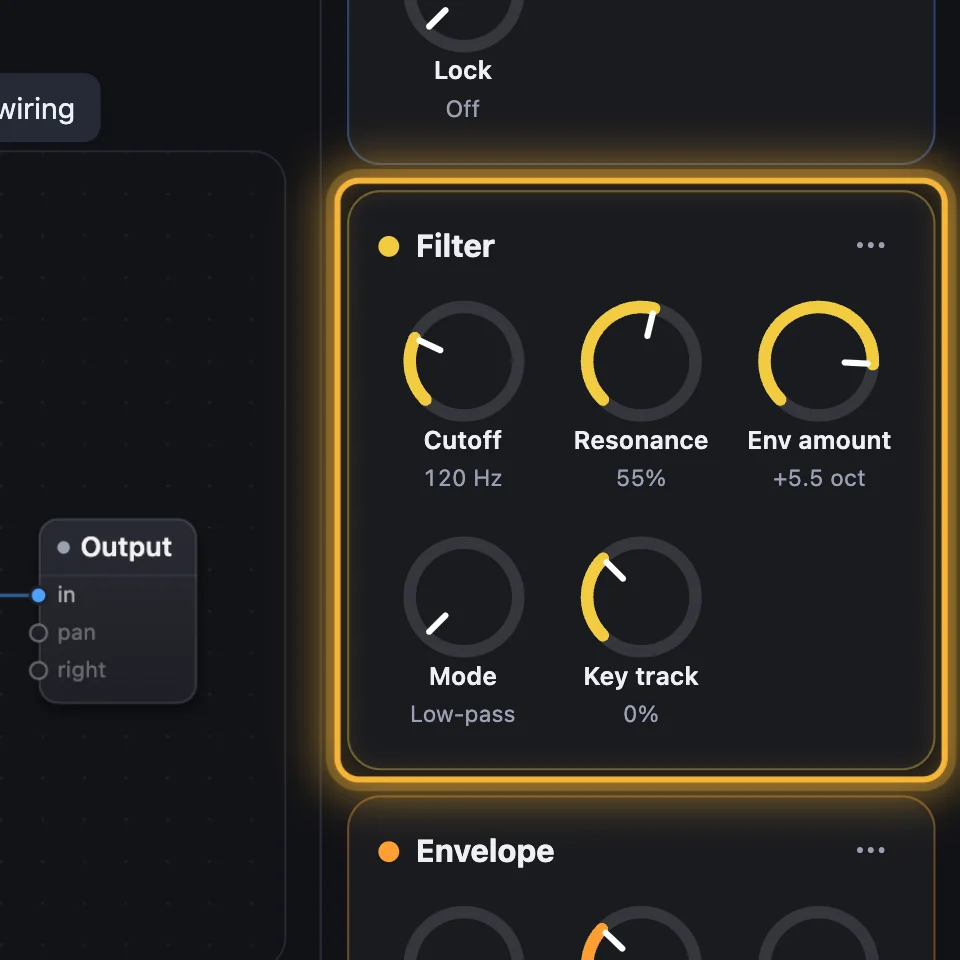
Drag a knob up or down. Drag sideways, or hold Alt, for fine control. Double-click it to go back to where it started. Undo takes back each change, one at a time.

Try it
- Open SynthMaker and press A S D F on your computer keyboard: Acid Starter plays.
- Drag the Filter's Cutoff all the way down, then slowly up from the bottom: the sound goes dark, then bright.
- Click Undo until it says just Undo: Acid Starter sounds as it did at the start.
On the Mac, SynthMaker plays the same way. The computer keys are two rows: Z X C V B N M and Q W E R T Y U I, with the rows above them for the black keys, and ← → change the octave. A MIDI keyboard plays as soon as it's plugged in.
Remember
- Click a key, type A S D F, or use a MIDI keyboard: the sound plays.
- Click a sound in the library to hear it; the first change makes your own copy, under My sounds.
- Drag a knob to change the sound; Undo takes each change back.