 SynthMaker
Make a module of your own
Several modules can become one box of your own, with its own name and its own knobs. Open it to see what's inside, and give it a face.
Pro: anyone can open any module and read its code, parts list or patch. Writing your own, or changing one, needs SynthMaker Pro. Turning its knobs is free.
New words
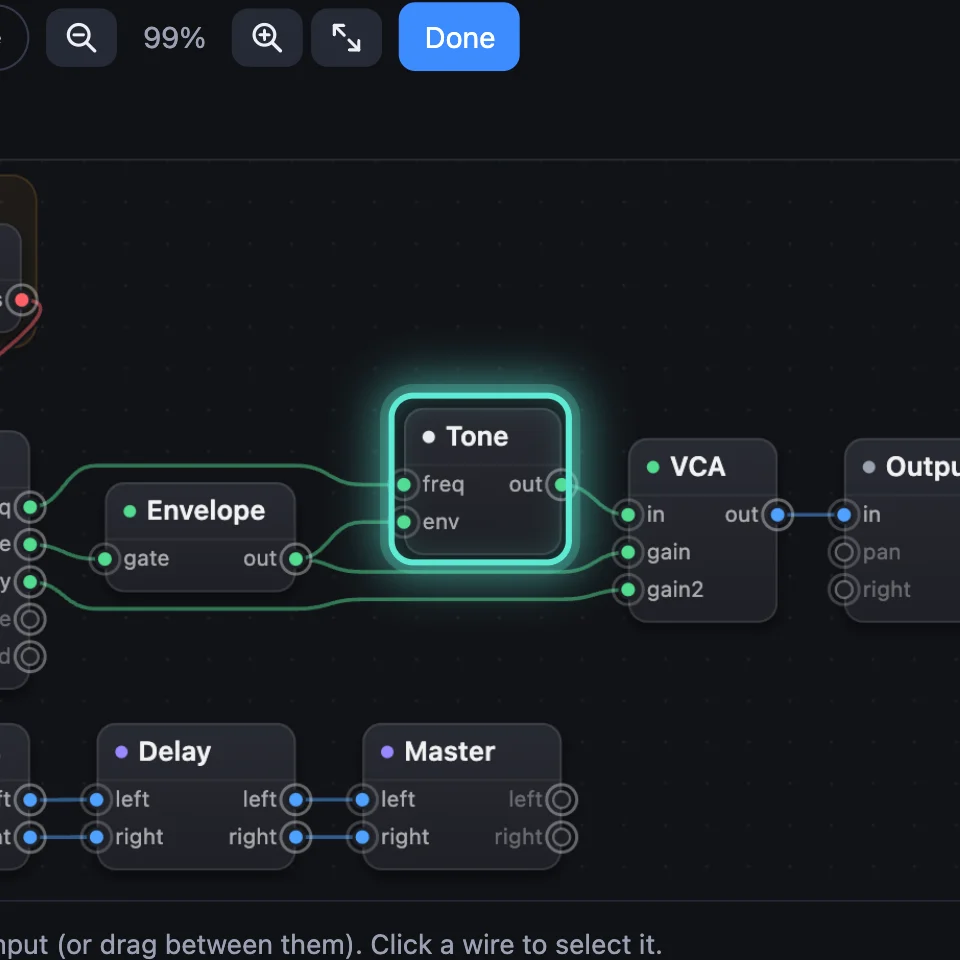
A module of your own is a module you made, from other modules or from code. In the Patch it's one box.
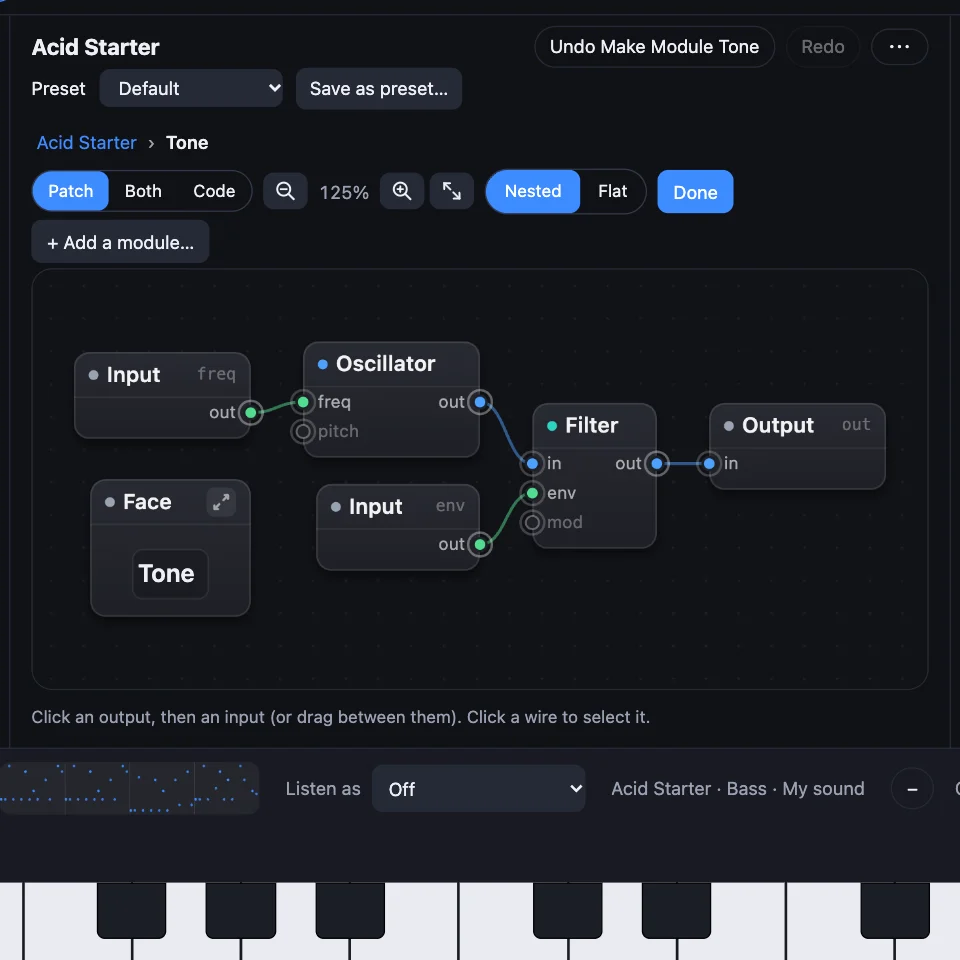
Inputs and Outputs: inside your module, the boxes where wires come in from the rest of the sound and go back out.
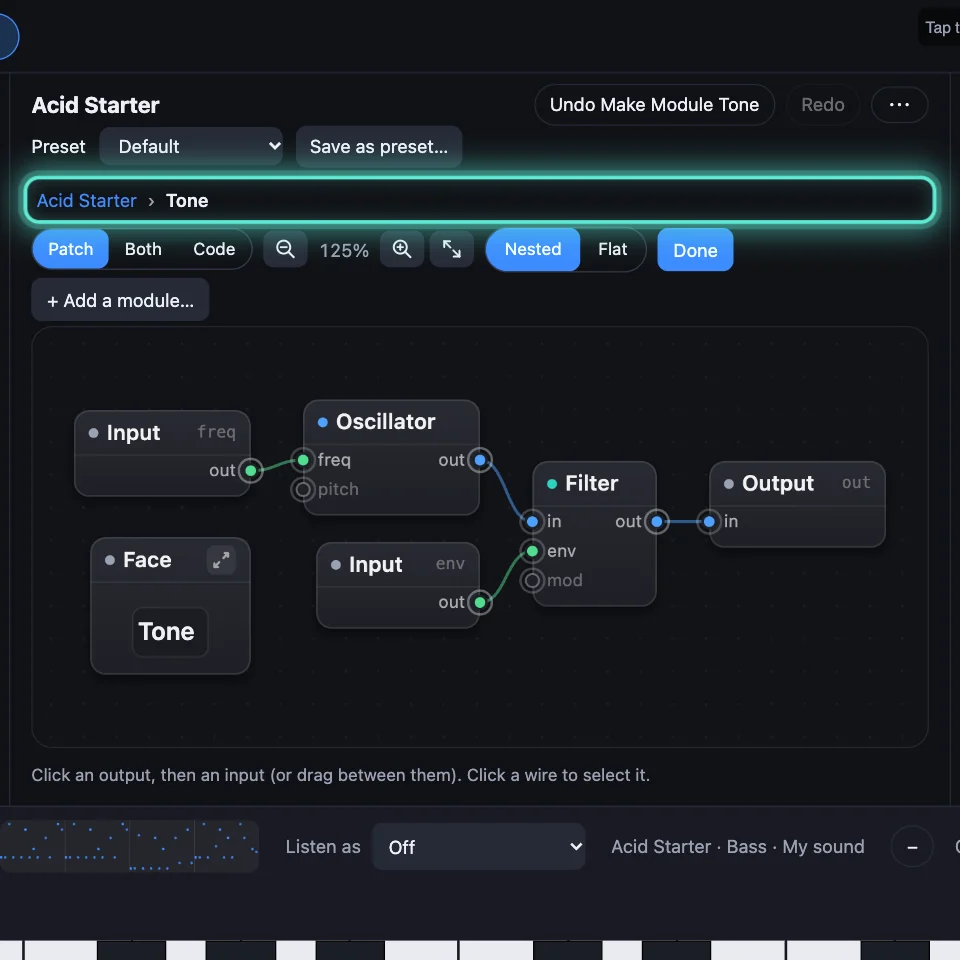
The breadcrumb is the path above the Patch, such as Acid Starter › Tone, that says which level you're on.
1Pick the modules
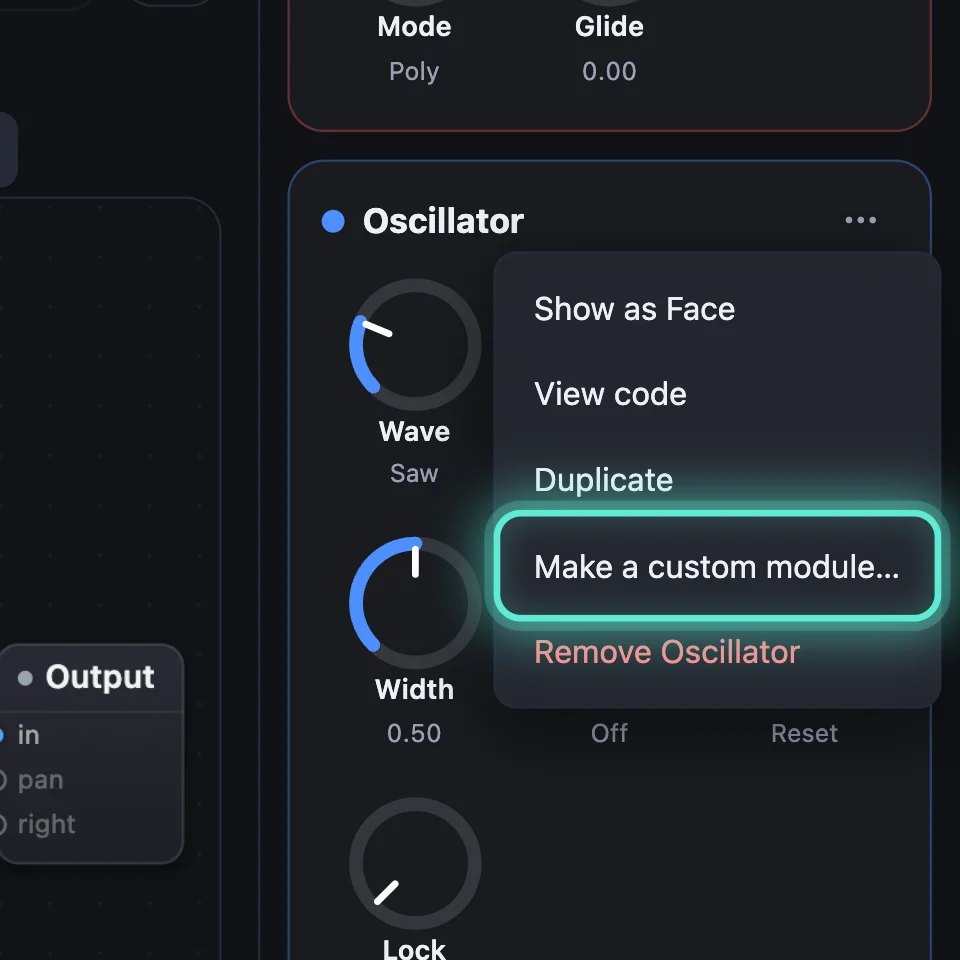
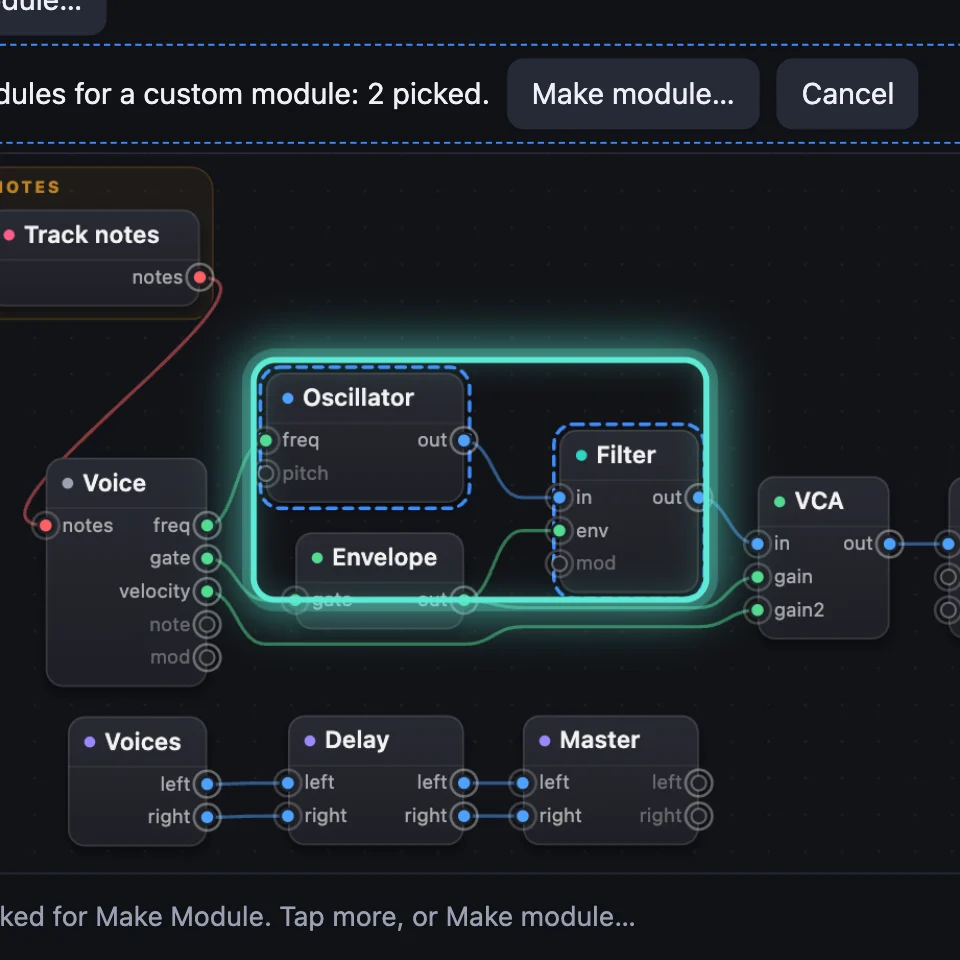
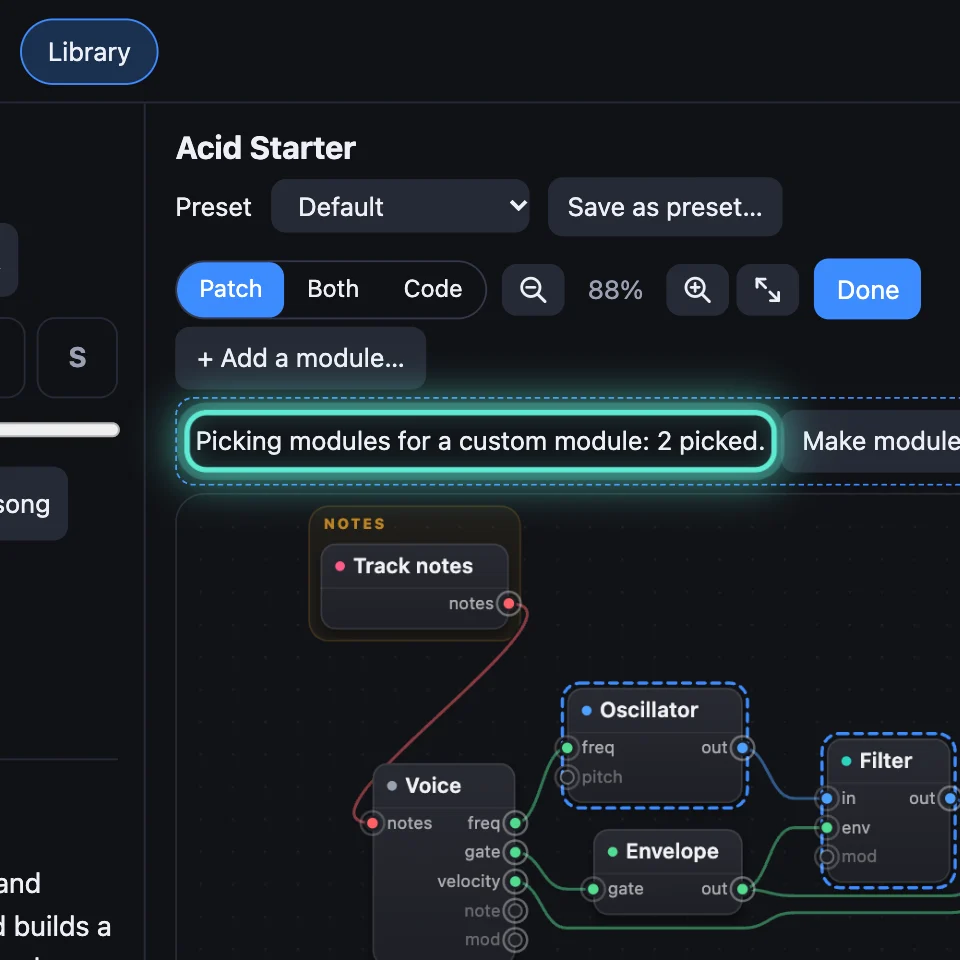
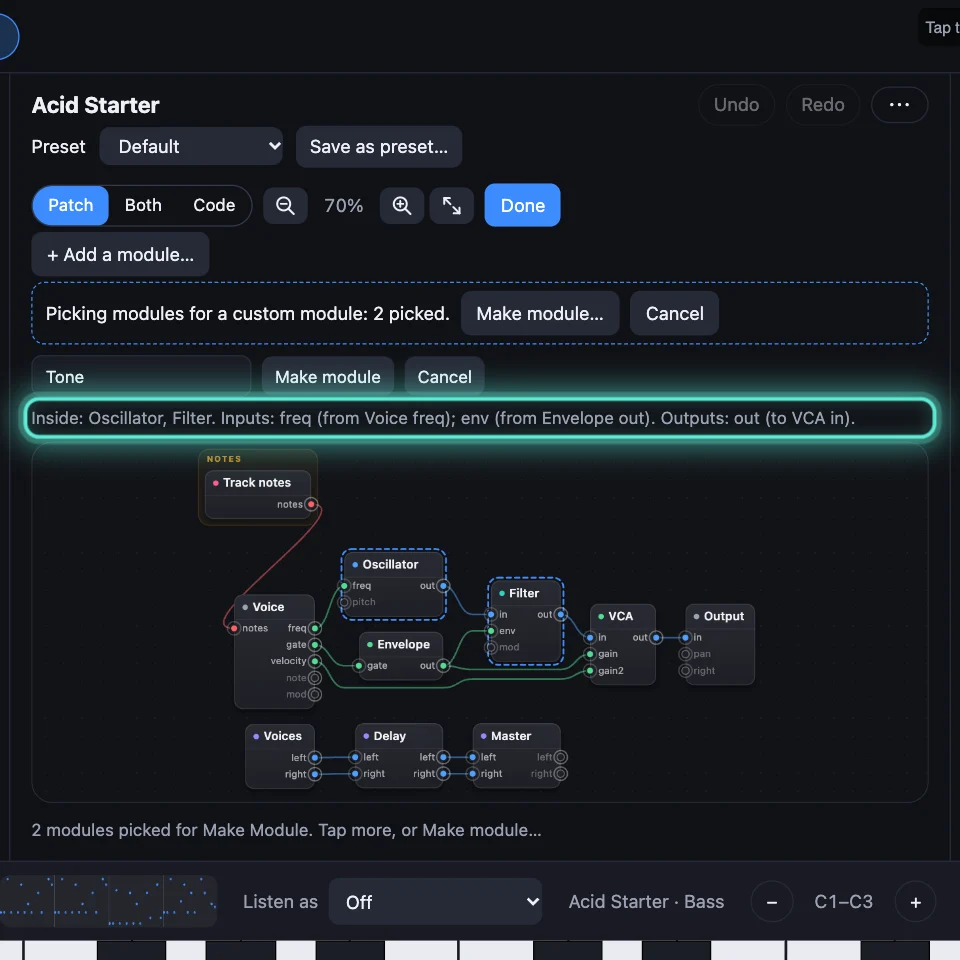
Click a module's ⋯ on its card (or right-click it in the Patch) and choose Make a custom module…: here, the Oscillator. Then click each other module to put inside: here, the Filter. The bar counts them.
2Name it and make it
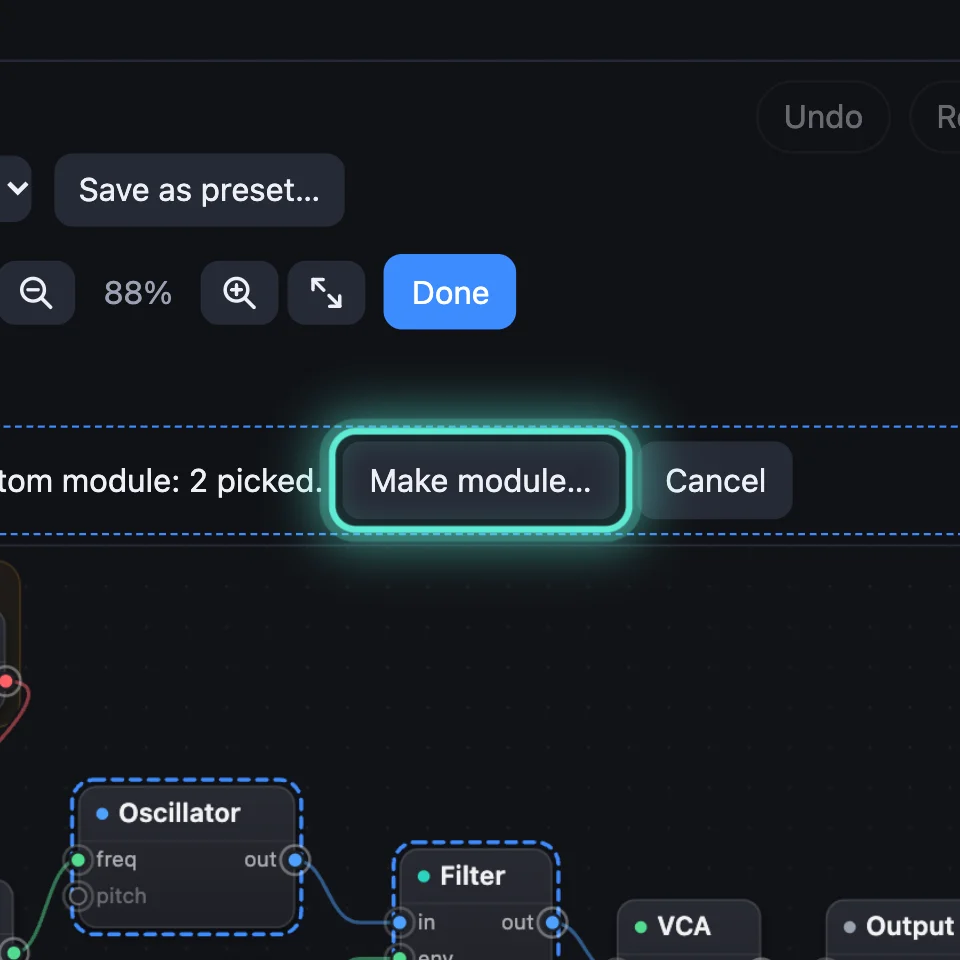
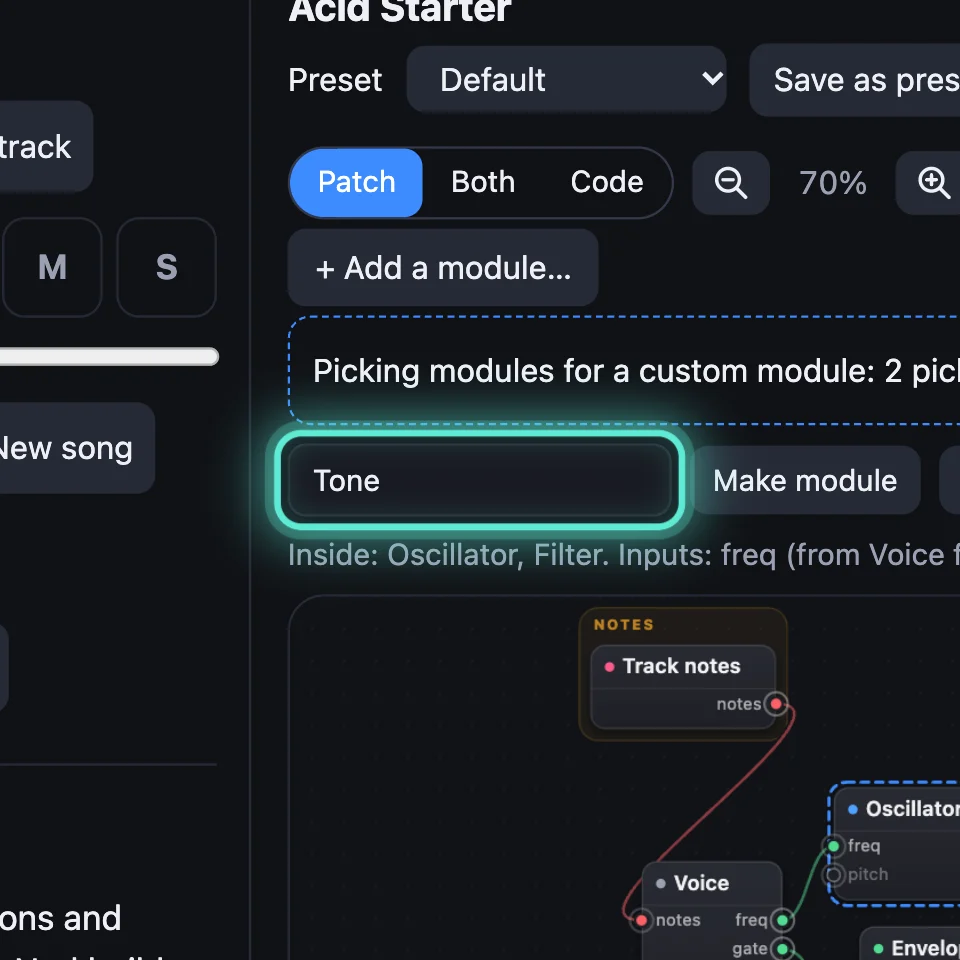
Click Make module… and type a name, such as Tone. The line under it lists what goes inside and what becomes its Inputs and Outputs. Click Make module.
3Go inside
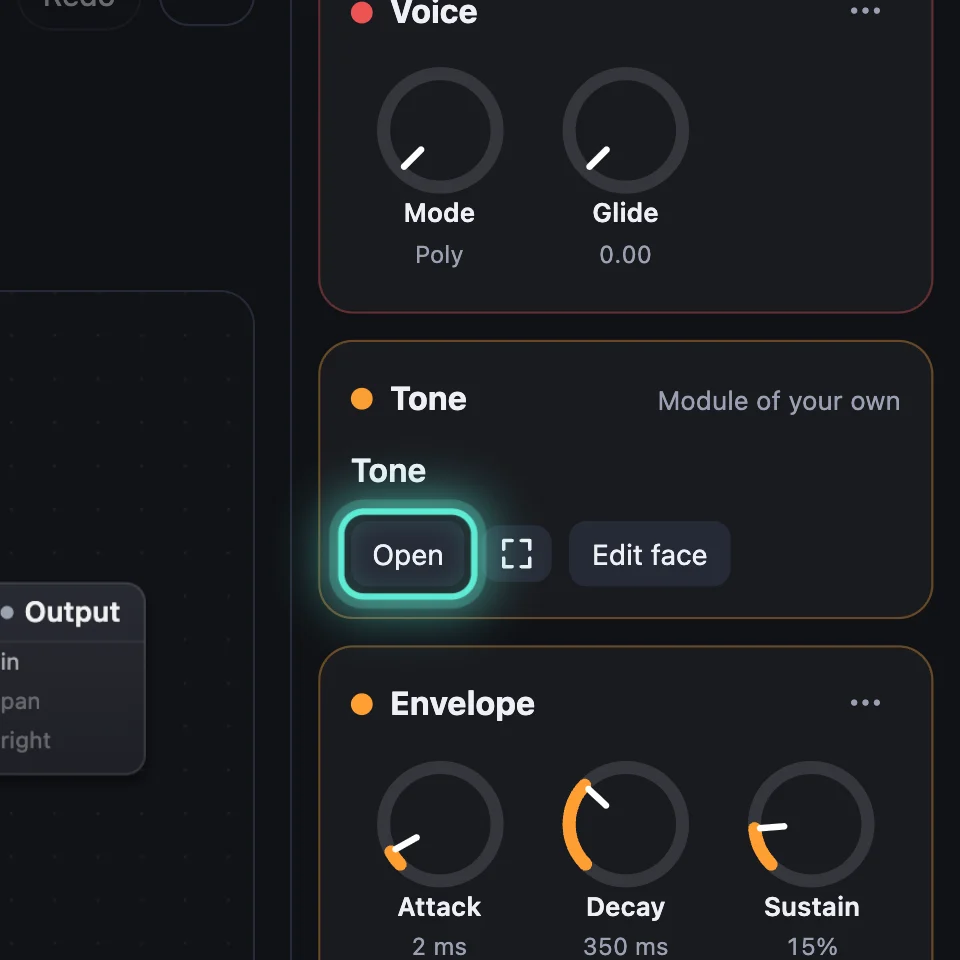
Double-click Tone, or click Open on its card. Inside are the Oscillator and the Filter, between its Inputs and Outputs. The breadcrumb takes you back up.
4Give it a face
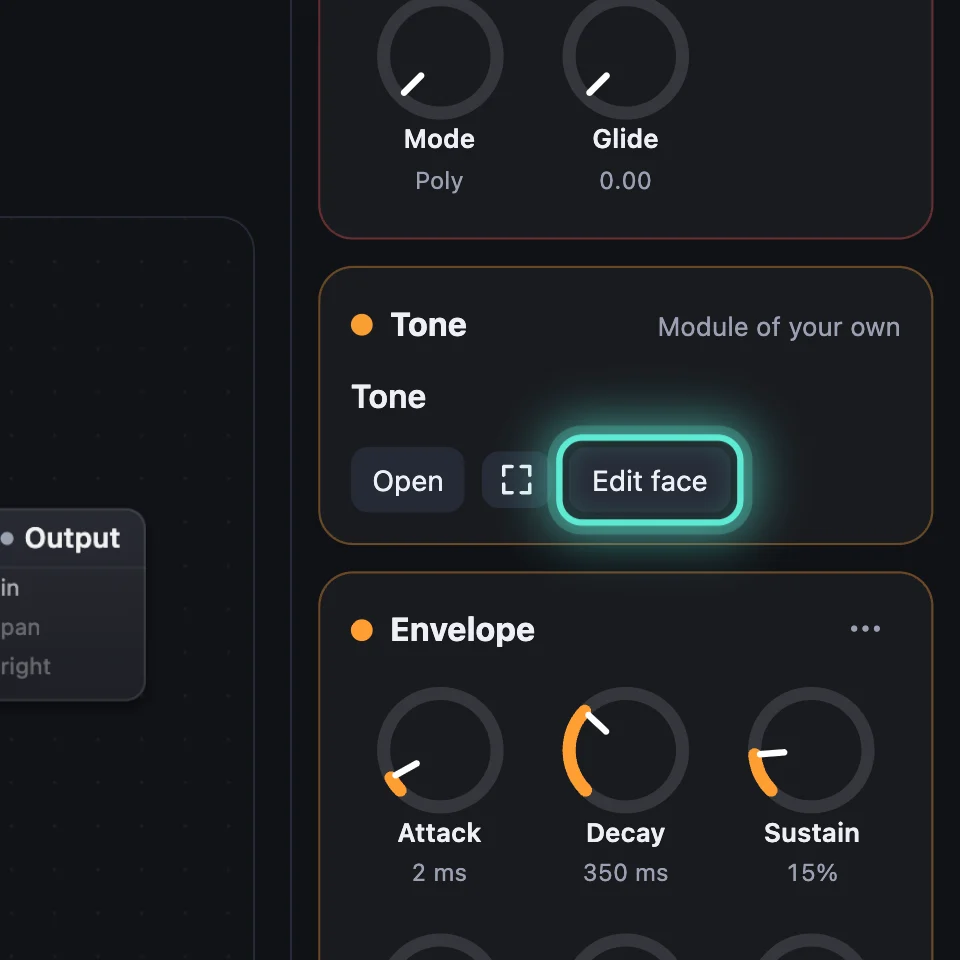
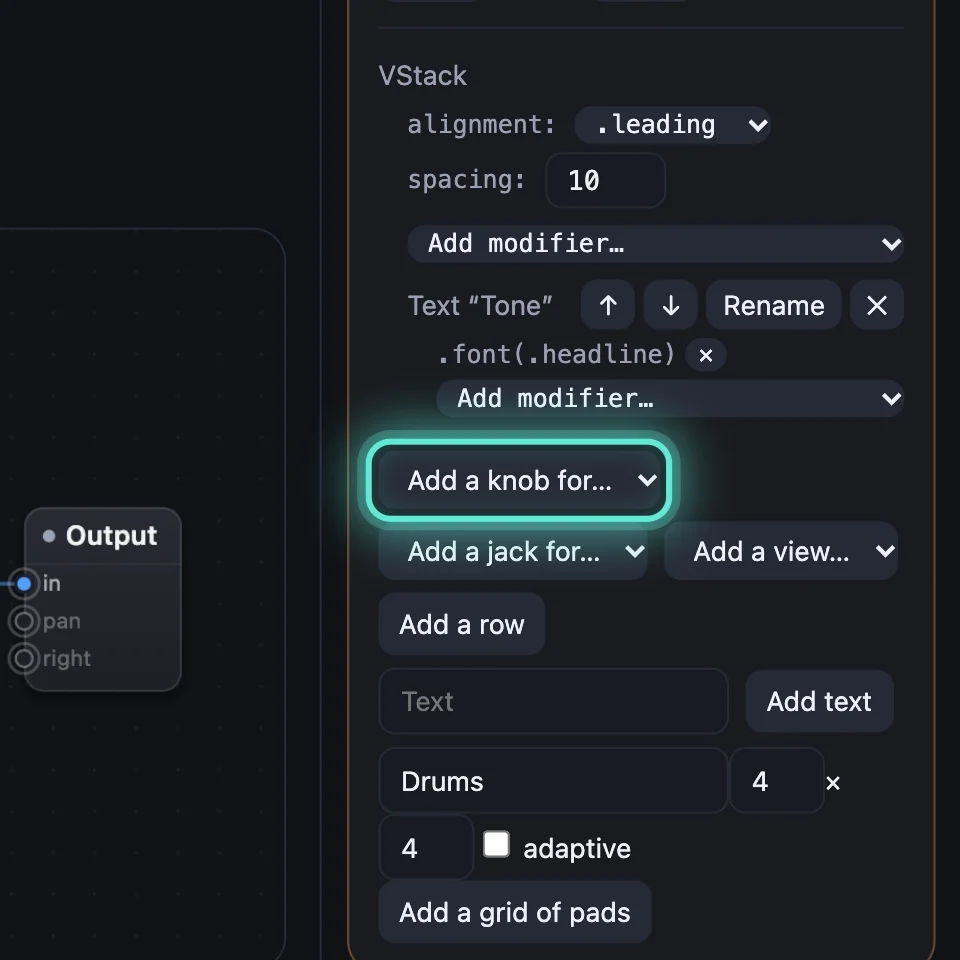
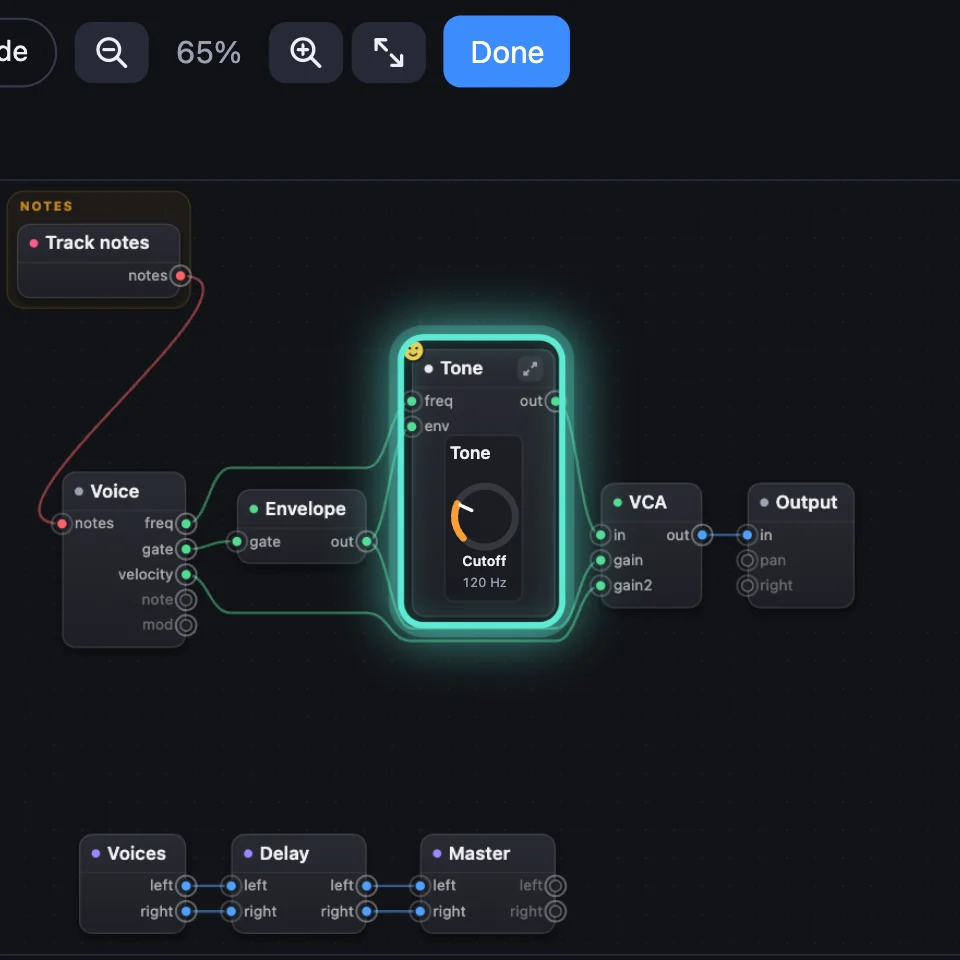
A face puts the knobs you choose on the front of your module. Click Edit face on its card, add a knob for the Filter's cutoff, and click Done. Faces in SwiftUI shows every part of it.
5Two more ways to start
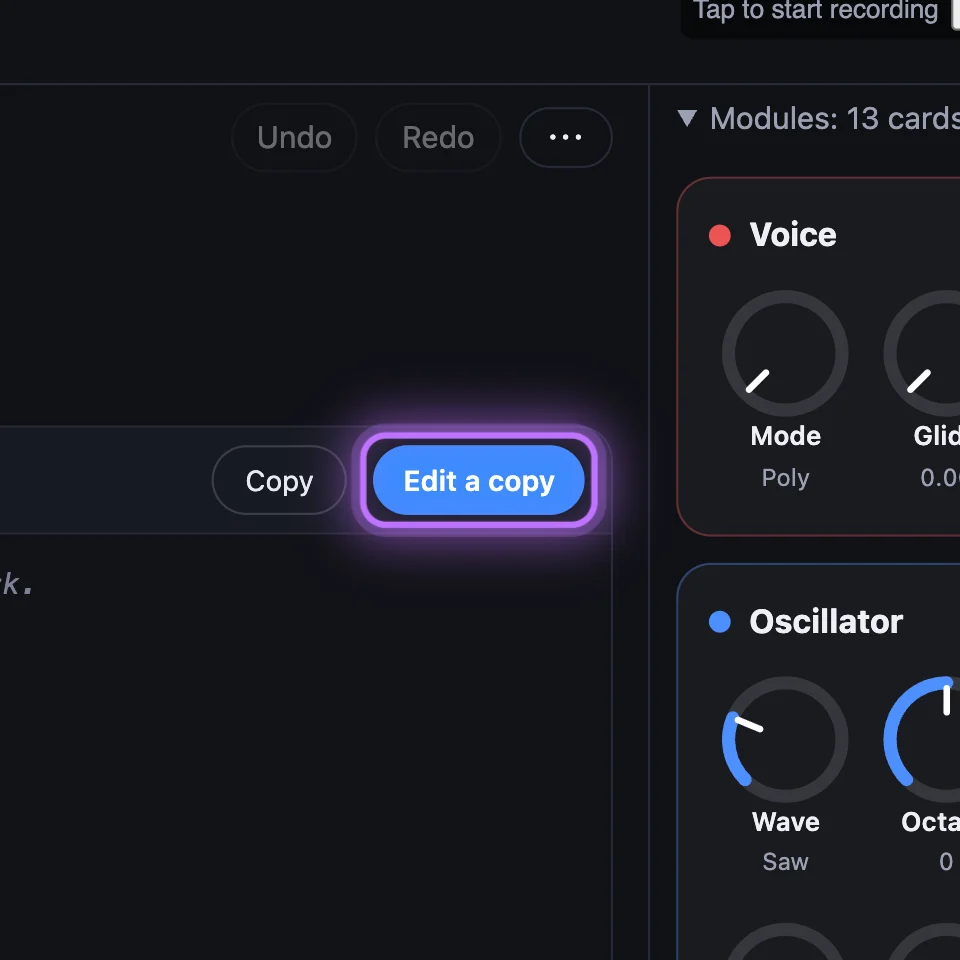
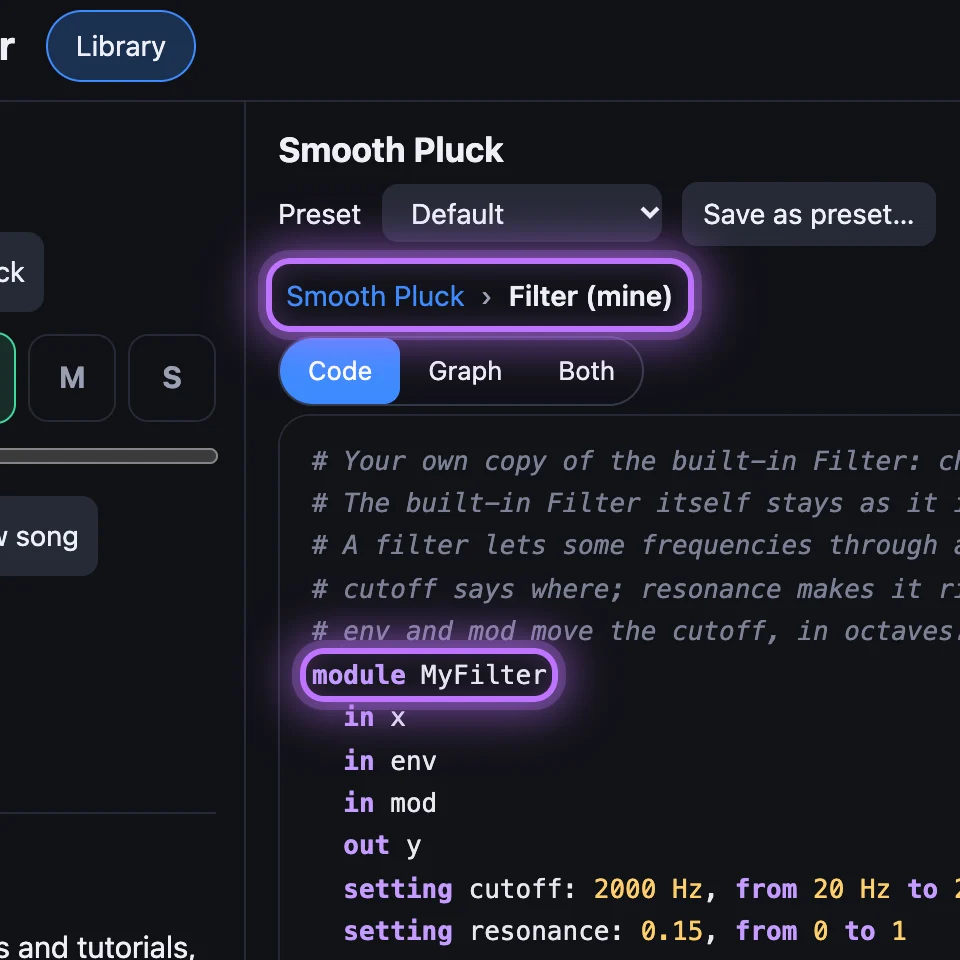
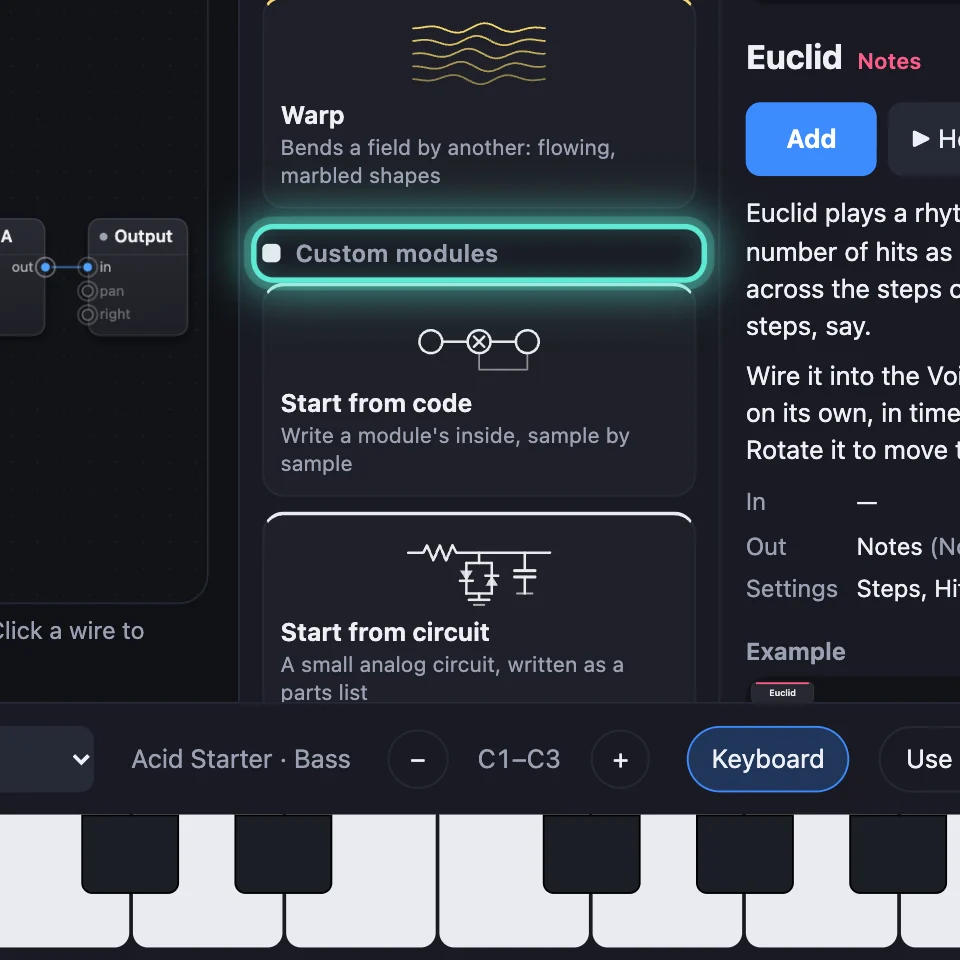
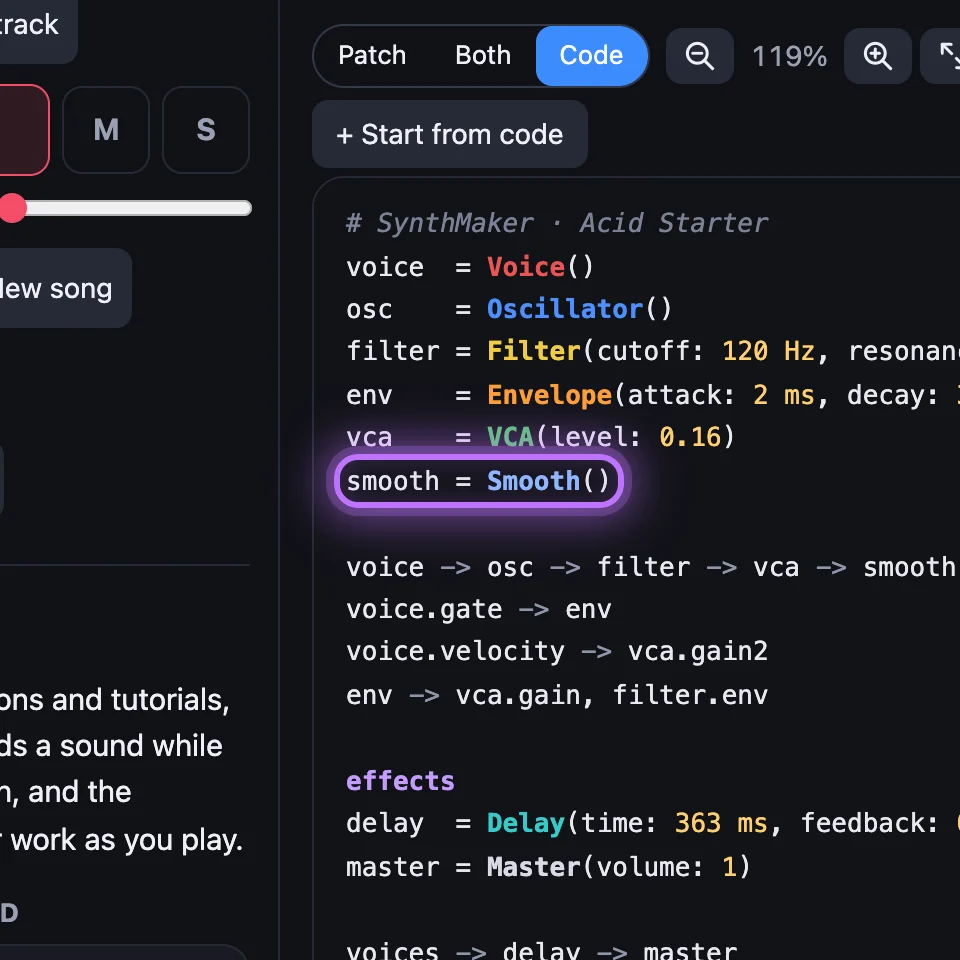
Edit a copy: open a built-in, such as the Filter, and choose Edit a copy. In this sound only, it becomes a Code module of your own, Filter (mine), with the same code to change. Start from code: in + Add a module, under Custom modules, Start from code adds a Code module you write yourself.

Try it
- Open Acid Starter, click ⋯ on the Oscillator's card, choose Make a custom module…, then click the Filter.
- Click Make module…, name it Tone, and click Make module: the Patch shows one box, Tone.
- Double-click Tone: the Oscillator and Filter are inside. Click Acid Starter in the breadcrumb to come back.
On the Mac, the Edit menu has Make Module… (⌥⌘G), Open Module (⌘↓), Enclosing Level (⌘↑) and Edit Face (⌥⌘F).
Remember
- Make a custom module…, click what goes inside, then Make module…: they become one box of your own.
- Double-click it or click Open to go inside; the breadcrumb takes you back.
- Edit a copy turns a built-in into your own Code module; Start from code starts one from scratch.